
Tasks, plans and approvals
Last updated:
How Crewdle tracks every request on a task board, how plan approval, approval cards and budgets work, and how the Cards view shows what needs you.
Agents work on their own, but you stay in charge: every request is tracked as a task, plans wait for your go-ahead, and sensitive actions wait for your approval.
Do’s and don’ts
Do
- Read what will be sent, published or changed before approving
- Use “Allow for this task” for a batch of similar actions
- Use “Always for this routine” for a recurring job, for one folder
- Use Undo when a saved note isn’t right
Don’t
- Approve without reading
- Give blanket permissions for sending, publishing or deleting
- Expect routines to run while their cards wait
- Leave cards unanswered: decline or dismiss them
The task board
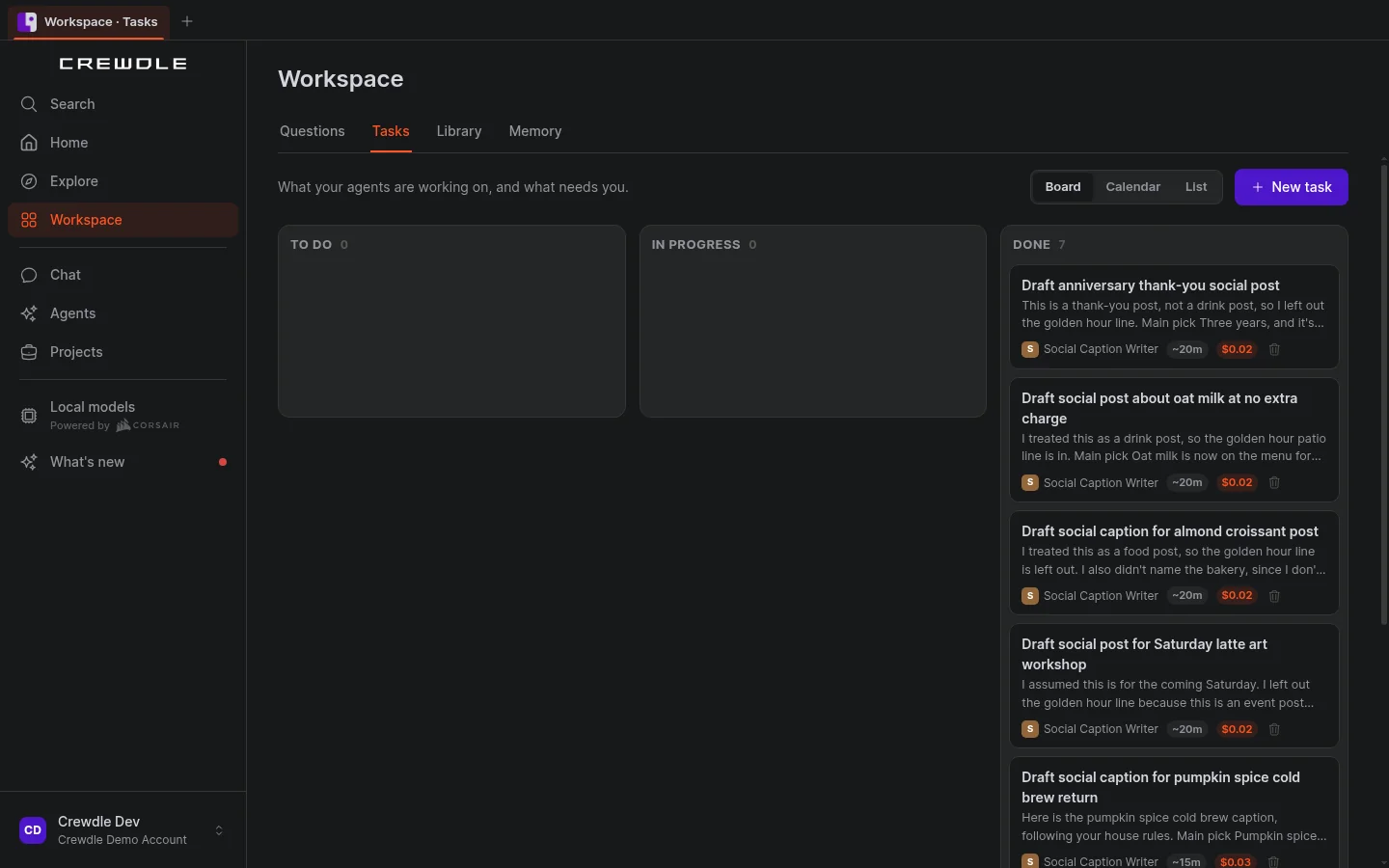
Open Workspace → Tasks in the sidebar. Every request to an agent or a team is tracked there as a task, with its owner, live progress and what it has spent so far.
- Queued steps start on their own. A step that waits on another sits in To do and starts as soon as its prerequisites are done.
- Stop or close from the board. Stop a task that's running, or close one you no longer need, without going into the conversation.
- The same list shows under a project’s conversation, so you can follow the work where it happens.
Plan approval
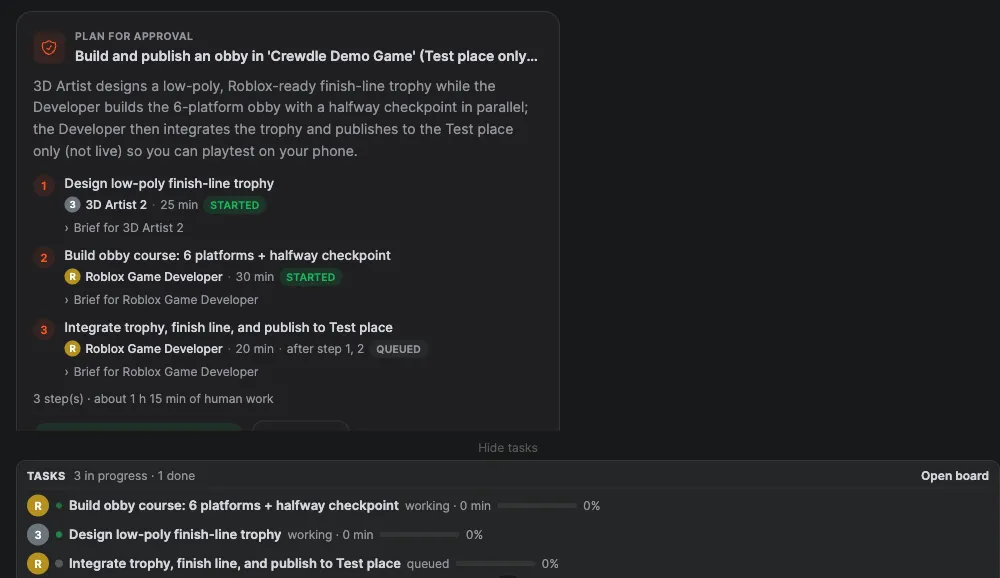
When you brief a team, the manager first proposes a plan: the steps, who owns each one, and an estimate. Nothing starts until you decide.
- Approve & start launches the plan. Steps run in parallel where they can, and dependent steps queue.
- Request changes sends the plan back with your notes.

Approval cards
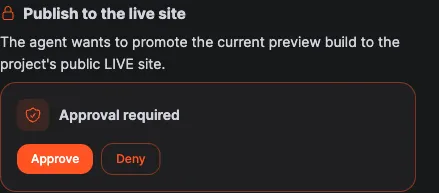
Some tools are approval-gated, for example publishing a site or a game, saving a memory or a new skill, and the first email an agent sends from its own address to someone new. Replies to people who wrote to the agent, and emails to members of your organization and existing contacts, need no card. Sending from a connected Gmail or Outlook account shows no card either: the agent follows what you asked it to do. When an agent wants to use a gated tool, it posts a card that explains what it's about to do.
- Approve lets it go ahead this once.
- Always approve, on cards that offer it, lets it do that kind of action from now on without asking. For what is public, costs money or cannot be undone, such as publishing a site live, the card offers only Approve and Deny, so every action is its own decision.
- Deny stops the action, and the agent is told.
Read more: when an agent should ask first.
Agents also ask you question cards when they need a decision or a missing detail. Answer on the card and the agent picks up from there.
Answering cards
Approve / Decline: declining with a reason gives the agent what it needs to propose something better. You can Decline a plan too.
Allow for this task: approves the similar actions that follow in the same job (for example uploading 12 edited photos), so you don’t approve each one.
Always for this routine: on a routine’s card, allows that routine to create or edit files in that exact folder every time it runs. It never covers deleting or sharing. Only the routine’s owner or an admin can grant or remove it.
Batches: several similar actions arrive as one card (“Upload 12 files”).
✕ Dismiss: closes a request card you don’t want to act on.
Sharing a file, sending an email, publishing a post and deleting something always ask first.
A habit that pays off: open the Decisions icon (✓✓) at the top of Chat each morning and answer what’s waiting. Your agents keep moving and you earn the Review and approve cards quickly skill.
Budgets
- Each agent has a monthly budget cap. When it reaches the cap, it posts a budget card and waits for you to raise the cap or stop.
- In a project, one member at its cap puts the whole project on hold until you decide, so the others don't carry on without it.
- The project’s spend shows in the conversation header.
The Cards view
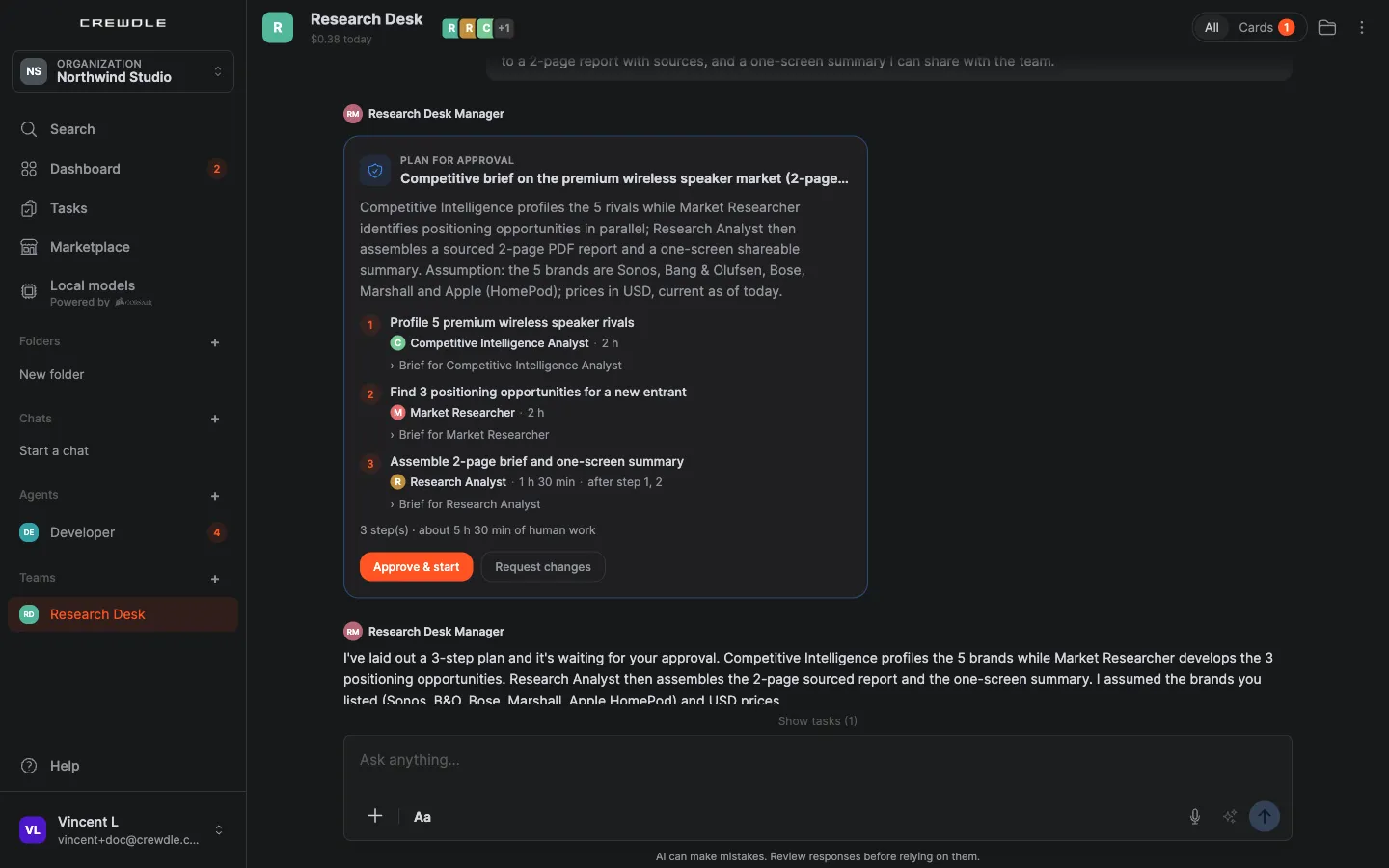
In a busy conversation, cards are easy to miss. When something is waiting, the conversation shows "N cards need you". Switch to the Cards view to see only the cards (plans, approvals, questions and budgets) that need your answer.
Notifications
You get a notification when an agent answers or needs you, and unread badges in the sidebar show where. See also Teams and Sharing and collaboration.
Requests to try
Ask what’s waiting
What is waiting for my decision right now across my agents and projects? List the most urgent first, and tell me what happens if I don’t answer today.
Replace the [brackets] with your details. The more context you give, the better the first answer.
Frequently asked questions
Can a team start working before I approve its plan?
No. The manager proposes the plan, and the steps start only when you press Approve & start.
What happens when I deny an approval?
The action doesn’t happen. The agent is told, and it carries on with the rest of the task or asks you how to proceed.
What stops when an agent hits its budget cap?
The agent stops and posts a budget card. Inside a project, the whole project pauses until you raise the cap or stop the work. You decide whether to raise the budget or end the job.
What do the buttons on an approval card do?
Approve lets the agent go ahead this once. Always approve, when the card offers it, lets it do that kind of action from now on without asking, and Deny stops the action and tells the agent. Publishing a site live offers only Approve and Deny, every time. Publishing a site and the first email an agent sends from its own address to someone new are examples of gated actions.
